
如何进行本书学习和环境设置
Web Playground
本书提供了一个 Web Playground,您可以直接在浏览器中试用每个章节的实现代码。 无需任何环境设置,您可以立即编辑和运行代码,所以请先在这里体验 chibivue 的实际运行!
如何启动 Playground
$ git clone https://github.com/chibivue-land/chibivue
$ cd chibivue
$ pnpm install
$ pnpm play
在浏览器中访问显示的 URL(例如:http://localhost:5173/)即可启动 Playground。
Playground 布局
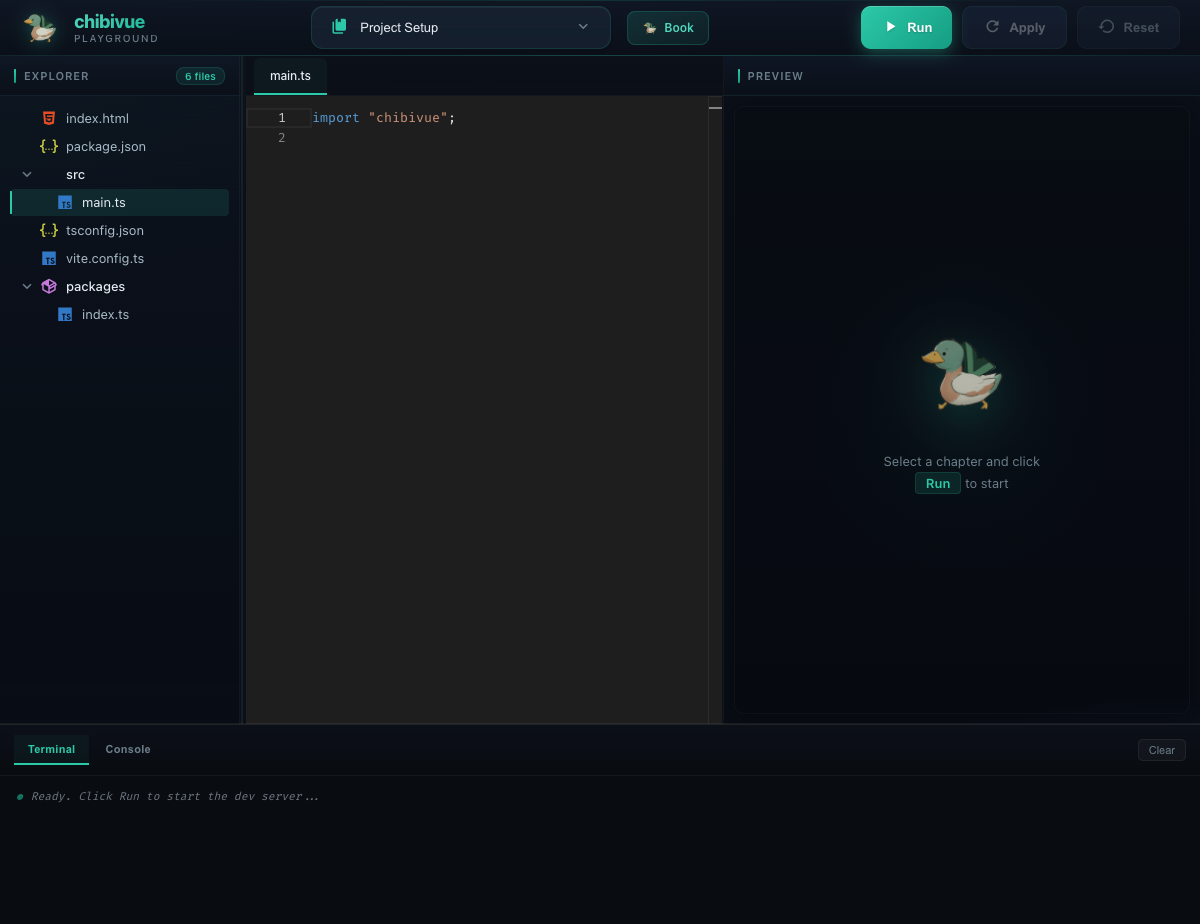
Playground 由四个区域组成:
| 区域 | 说明 |
|---|---|
| Explorer(左侧) | 显示项目文件树。点击文件可在编辑器中打开 |
| Editor(中央) | 使用 Monaco Editor 编辑代码 |
| Preview(右侧) | 显示在 WebContainer 上运行的开发服务器预览 |
| Terminal / Console(底部) | 查看终端输出和 console.log 内容 |
使用方法
选择章节 从屏幕顶部的下拉菜单中选择您想学习的章节。 您也可以使用搜索框过滤章节名称。
点击 Run 点击「Run」按钮启动 WebContainer,安装依赖并启动开发服务器。 首次运行需要一些时间,稍等片刻后,结果将显示在 Preview 区域。
编辑代码 在编辑器中编辑代码,然后点击「Apply」按钮应用更改。 通过 HMR(热模块替换),更改会实时反映。
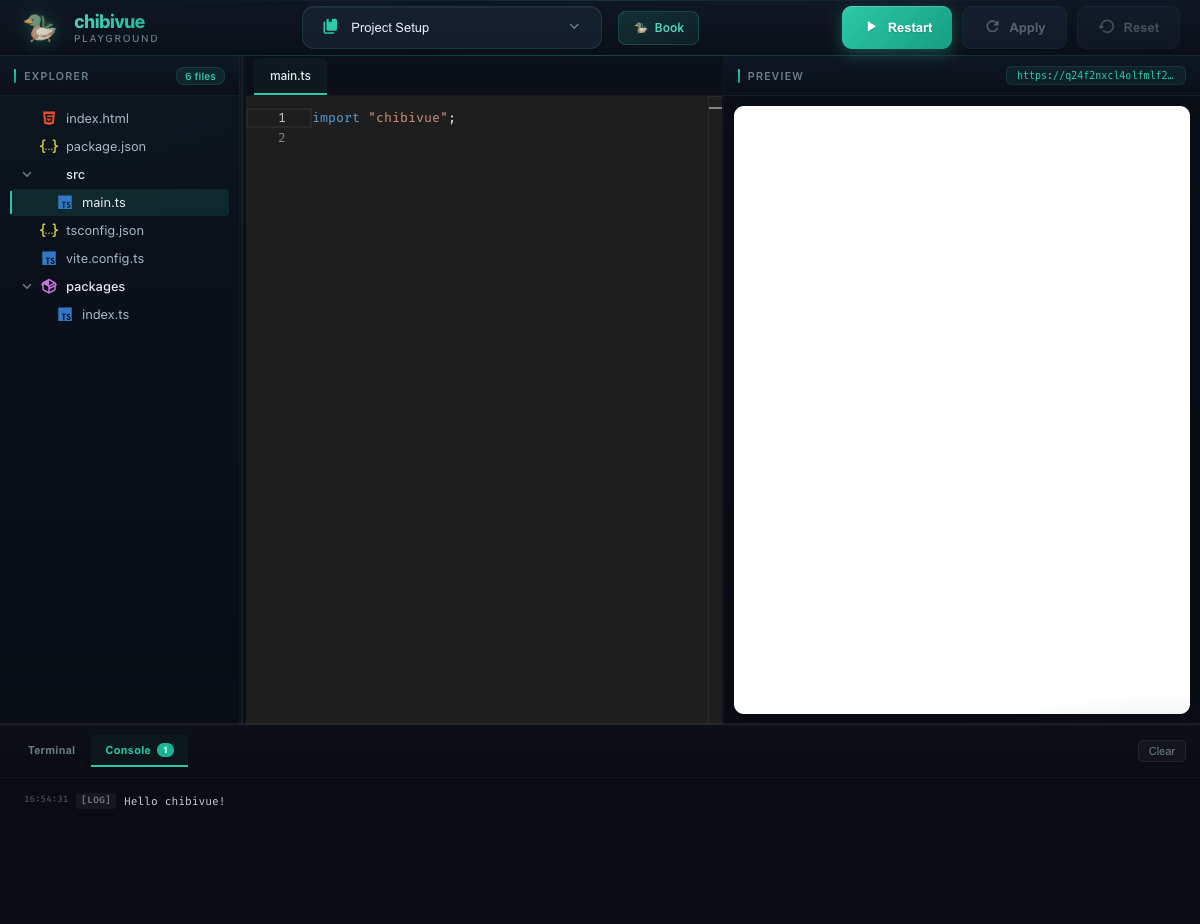
查看控制台 点击「Console」标签页查看 console.log 等输出内容。
TIP
Web Playground 使用 WebContainer。 在某些浏览器或环境中可能无法运行。在这种情况下,请参考下面的本地环境设置。
如何进行本书学习
我们将立即开始 Vue.js 的简单实现。以下是一些需要记住的要点,注意事项和其他重要信息:
- 项目名称将是"chibivue"。我们将把本书中涵盖的基本 Vue.js 实现称为"chibivue"。
- 如最初提到的,我们的主要方法将是"重复小型开发"。
- 每个阶段的源代码都包含在本书的附录中,可以在 https://github.com/chibivue-land/chibivue/tree/main/book/impls 找到。我们不会在书中为所有源代码提供详细解释,所以请根据需要参考附录。
- 最终代码依赖于几个包。DIY 内容的一个常见问题是关于"应该手工实现多少才能称之为自制"的争论。虽然我们不会在本书中手工编写所有源代码,但我们将积极使用与 Vue.js 官方代码中使用的类似的包。例如,我们将使用 Babel。请放心,我们的目标是使这本书尽可能对初学者友好,为必要的包提供最少的解释。
环境设置
现在,让我们快速进入环境设置!
我将列出我们将使用的工具和版本:
- 运行时:Node.js v24
- 语言:TypeScript
- 包管理器:pnpm v10
- 构建工具:Vite v8
安装 Node.js
你们大多数人可能都熟悉这一步。请自行设置。我们将跳过这里的详细解释。
安装 pnpm
你们中的许多人可能通常使用 npm 或 yarn。对于这本书,我们将使用 pnpm,所以请也安装它。命令大多与 npm 相似。 https://pnpm.io/installation
创建项目
急于开始的快速启动...
虽然我将解释手动创建项目的步骤,但实际上有一个为设置准备的工具。 如果您觉得手动过程繁琐,请随时使用这个工具!
克隆 chibivue。
sh$ git clone https://github.com/chibivue-land/chibivue执行脚本。 输入您想要设置的目录路径。
sh$ cd chibivue $ pnpm setup:book ../my-chibivue-project
在您选择的任何目录中创建项目。为了方便起见,我们将项目的根路径表示为 ~(例如,~/src/main.ts)。
这次,我们将把主要的"chibivue"与测试其功能的游乐场分开。游乐场将简单地调用"chibivue"并用 Vite 打包它。我们预期这样的结构。
~
|- examples
|    |- playground
|
|- packages
|- tsconfig.js
我们将在名为"examples"的目录中实现游乐场。 我们将在"packages"中实现 chibivue 的核心 TypeScript 文件,并从示例端导入它们。
以下是构建它的步骤。
构建主项目
## 请创建一个专门用于 chibivue 的目录并导航到其中。(此后将省略此类注释。)
pwd # ~/
pnpm init
pnpm add -D @types/node
mkdir packages
touch packages/index.ts
touch tsconfig.json
tsconfig.json 的内容
{
  "compilerOptions": {
    "target": "ES2020",
    "module": "ES2020",
    "lib": ["DOM", "ES2020"],
    "strict": true,
    "paths": {
      "chibivue": ["./packages"]
    },
    "moduleResolution": "Bundler",
    "allowJs": true,
    "esModuleInterop": true
  },
  "include": ["packages/**/*.ts", "examples/**/**.ts"],
  "exclude": ["node_modules", "dist"]
}
packages/index.ts 的内容
console.log("Hello, World")构建游乐场端
pwd # ~/
mkdir examples
cd examples
pnpm dlx create-vite

## --------- 使用 Vite CLI 设置
## Project name: playground
## Select a framework: Vanilla
## Select a variant: TypeScript
从用 Vite 创建的项目中删除不必要的项目。
pwd # ~/examples/playground
rm -rf public
rm -rf src # 我们将重新创建它,因为有不必要的文件。
mkdir src
touch src/main.ts
src/main.ts 的内容
※ 现在,"from"后面会有错误,但我们将在接下来的步骤中解决这个问题,所以没有问题。
import "chibivue"按如下方式修改 index.html。
<!doctype html>
<html lang="en">
  <head>
    <meta charset="UTF-8" />
    <meta name="viewport" content="width=device-width, initial-scale=1.0" />
    <title>chibivue</title>
  </head>

  <body>
    <div id="app"></div>
    <script type="module" src="/src/main.ts"></script>
  </body>
</html>
在 Vite 项目中配置别名,以便能够导入您在 chibivue 中实现的内容。
pwd # ~/examples/playground
touch vite.config.js
vite.config.js 的内容
import path from 'node:path'
import { fileURLToPath } from 'node:url'
import { defineConfig } from 'vite'

const dirname = path.dirname(fileURLToPath(new URL(import.meta.url)))
export default defineConfig({
  resolve: {
    alias: {
      chibivue: path.resolve(dirname, '../../packages'),
    },
  },
})
按如下方式修改 tsconfig.json。
{
  "compilerOptions": {
    "target": "ESNext",
    "useDefineForClassFields": true,
    "module": "ESNext",
    "lib": ["ESNext", "DOM"],
    "moduleResolution": "Node",
    "strict": true,
    "resolveJsonModule": true,
    "isolatedModules": true,
    "esModuleInterop": true,
    "noEmit": true,
    "noUnusedLocals": true,
    "noUnusedParameters": true,
    "noImplicitReturns": true,
    "skipLibCheck": true,
    "paths": {
      "chibivue": ["../../packages"]
    }
  },
  "include": ["src"]
}
最后,让我们在 chibivue 项目的 package.json 中添加一个命令来启动游乐场并尝试启动它!
将以下内容附加到 ~/package.json
{
  "scripts": {
    "dev": "cd examples/playground && pnpm i && pnpm run dev"
  }
}pwd # ~
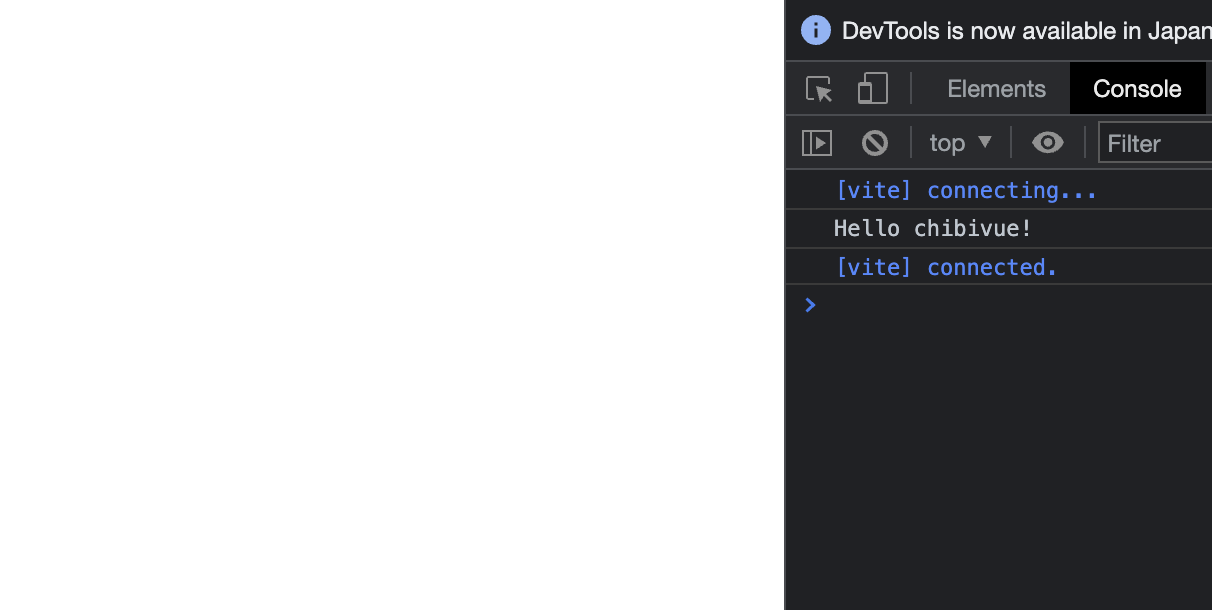
pnpm dev访问使用此命令启动的开发服务器。如果显示消息,则设置完成。
到此为止的源代码: chibivue (GitHub)